 Owner’s handbook
TKT Print
Tickets and badges, made on your own computer, checked one by one, and printed — from one guest’s badge to a stadium of 19,000.
 —▢✕
—▢✕Getting started
What the app is for, how to put it on your computer, and a tour of its one window.
1What TKT Print does
The back office can print a handful of tickets by itself. For hundreds or thousands — a stadium’s complimentary tickets, every badge for a conference — it hands the job to TKT Print, on your computer.
What you need
- A computer: a Mac with macOS 12 (Monterey) or newer, Apple silicon or Intel.a PC with Windows 10 or 11, 64-bit.
- An internet connection while tickets or badges are being made.
- A back office login that can see the order or the event.
- Optional: a printer. Without one you still get the PDF.
2Installing it
- Download itDownload for Mac TKT-Print-Mac.dmg
Then open TKT-Print-Mac.dmg from your Downloads. A window opens. - Drag the app onto Applications
Drawing · the window that opens
- Open itOpen Applications and double-click TKT Print.
- Say yes, onceThe first time, your Mac asks “TKT Print is an app downloaded from the internet. Are you sure you want to open it?” — click Open. TKT Print is checked by Apple, so that’s all; from then on it opens like any other app.
- Download itDownload for Windows TKT-Print-Windows-Setup.exe
Then open TKT-Print-Windows-Setup.exe from your Downloads. - If Windows stops it, let it through
Click More info. A Run anyway button appears — click it.Drawing · what Windows may show
- It installs by itselfNo questions and no administrator password. In a few seconds TKT Print opens, and a TKT Print shortcut is on your desktop and in the Start menu.
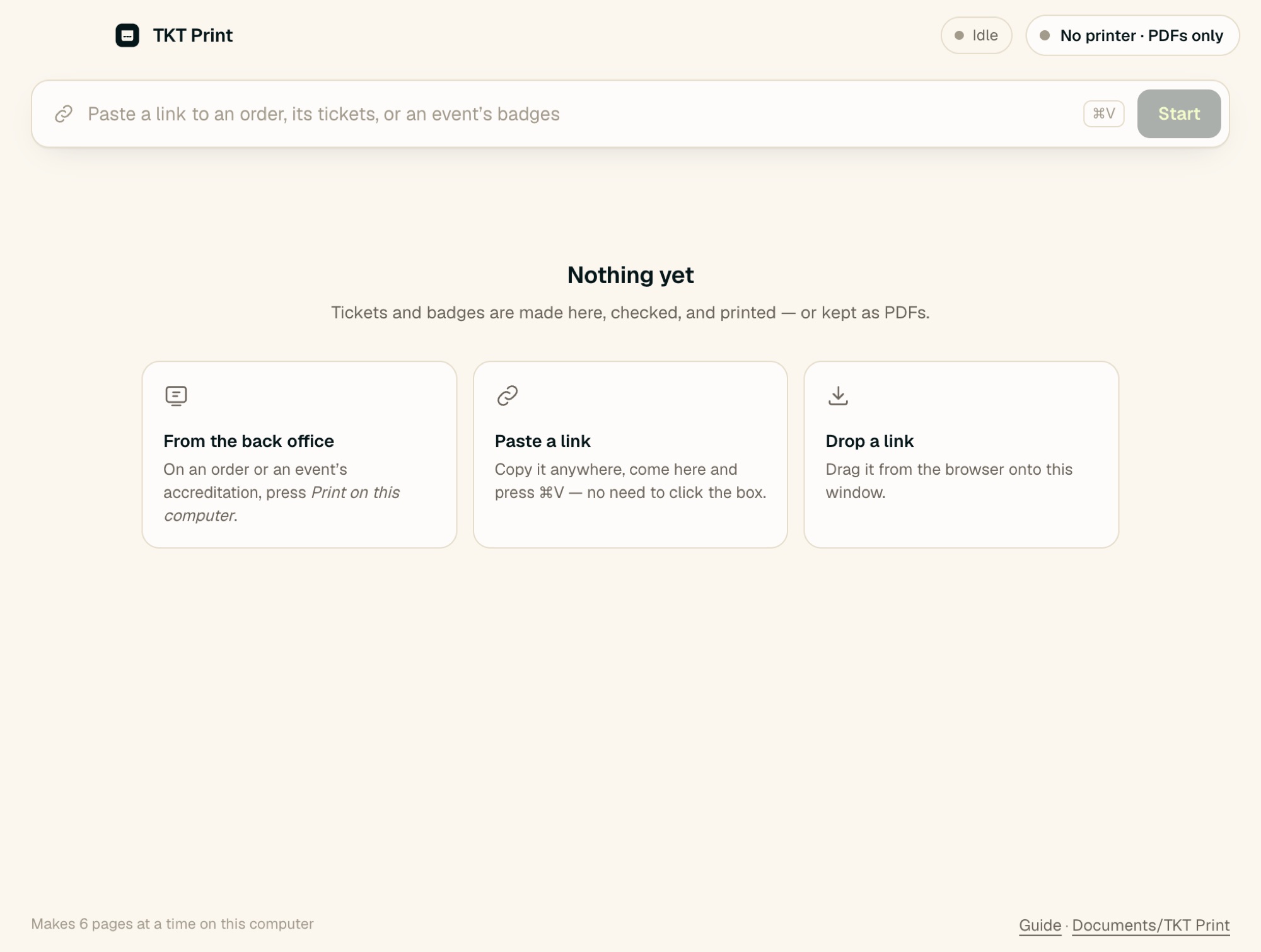
The first time it opens, the list is empty:
3Getting to know the window
Everything happens in one window. At the top: what the app is doing, and which printer it uses. Below: one card per job.
12345
6789
10111213
1415161718
—▢✕
12345
6789
10111213
1415161718
The three coloured buttons at the top left are your Mac’s usual window buttons. Closing the window doesn’t stop the work: TKT Print keeps going, and a notification says when it’s done.
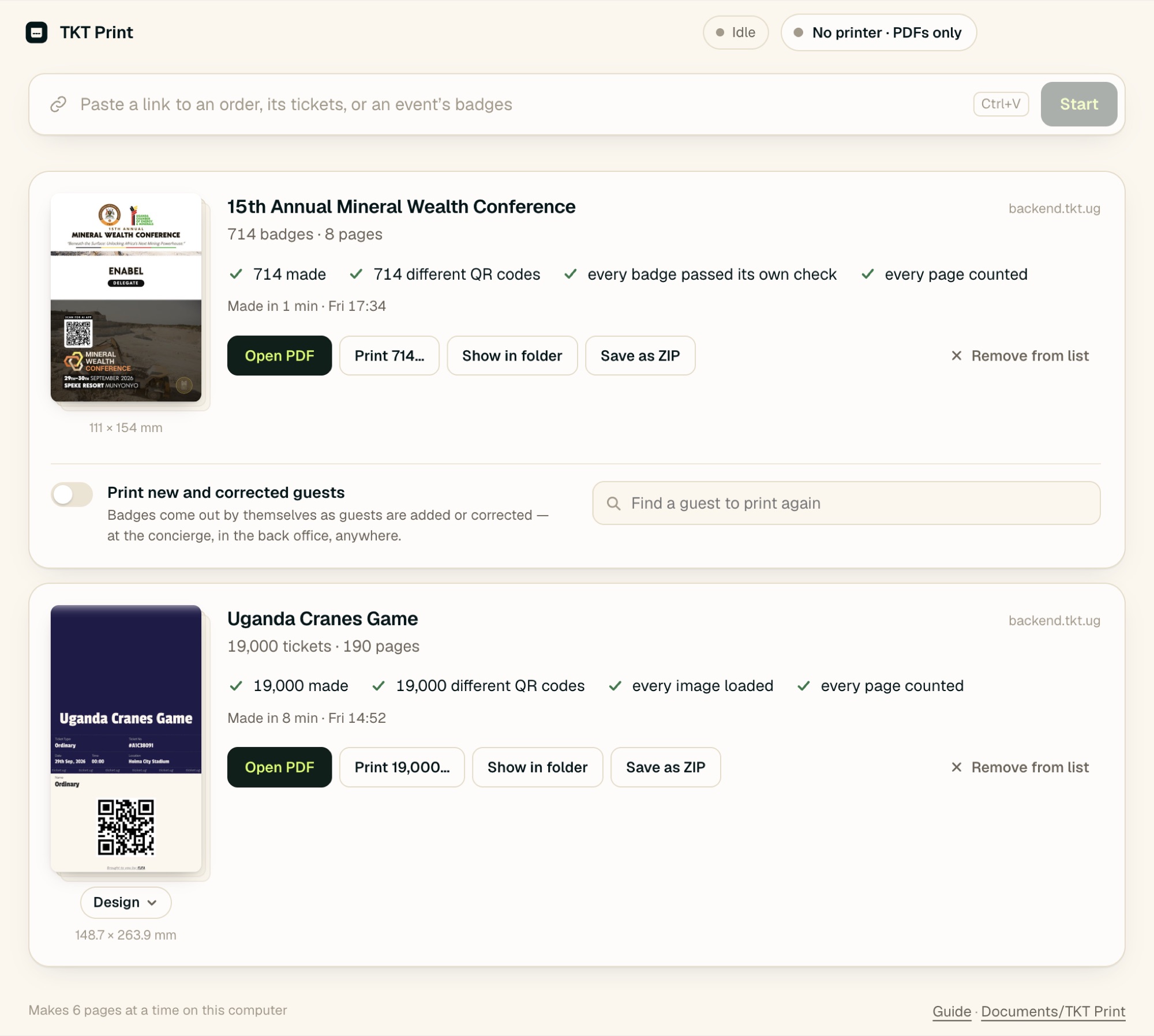
The three buttons at the top right are the usual minimise, maximise and close. Closing the window doesn’t stop a job that’s running: TKT Print keeps going, and a notification says when it’s done. Open TKT Print again to see it.
Everyday jobs
All the way through, from the back office to paper in your hand.
4Complimentary tickets, start to finish
The match is on Tuesday and the federation wants 19,000 complimentary tickets printed. This is the whole run.
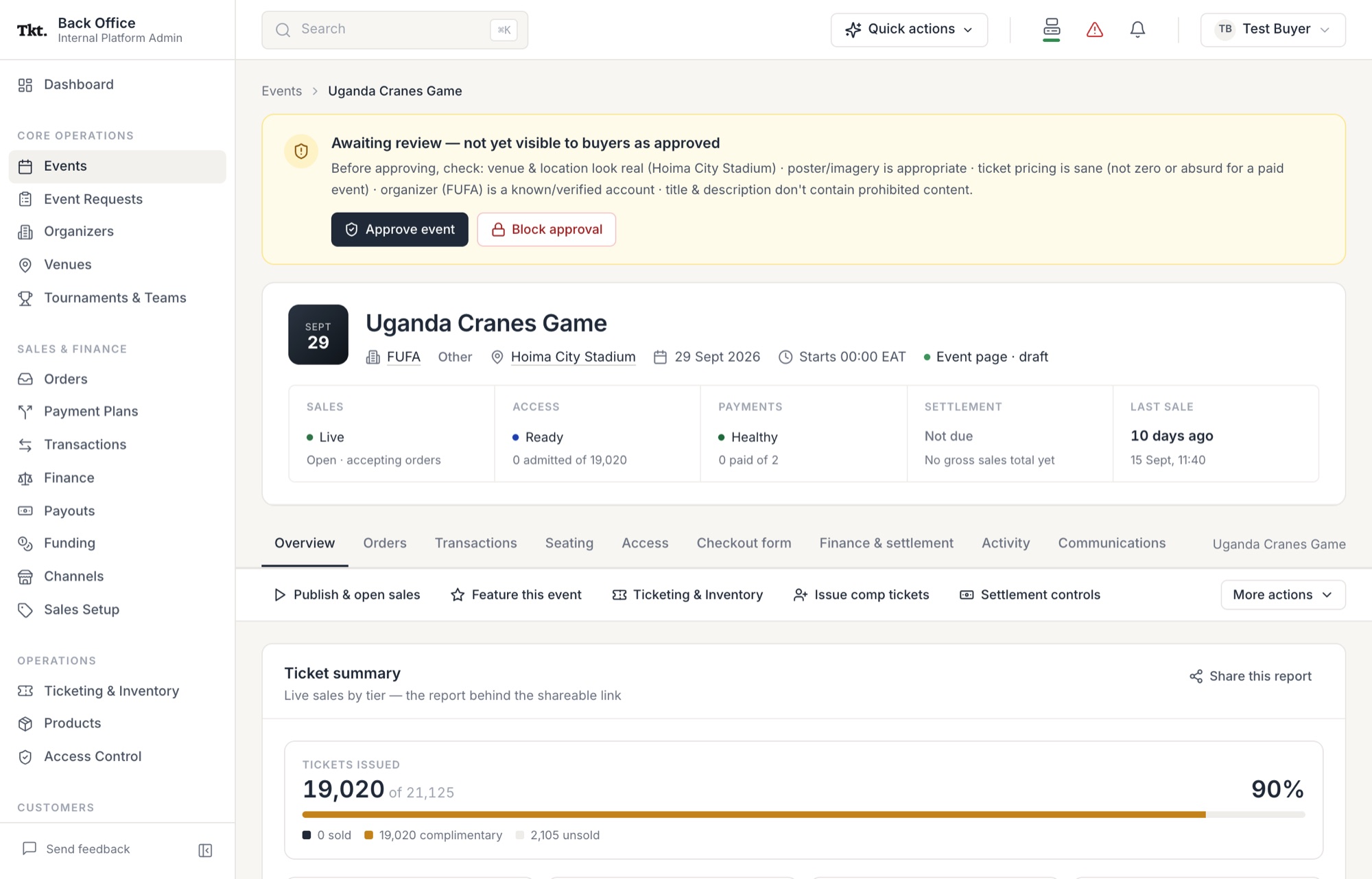
- Back officeOpen the event and press “Issue comp tickets”
 1
1Events → the event. Issue comp tickets is in the row of actions under the tabs. - Back officeSay what, how many, why, and for whom
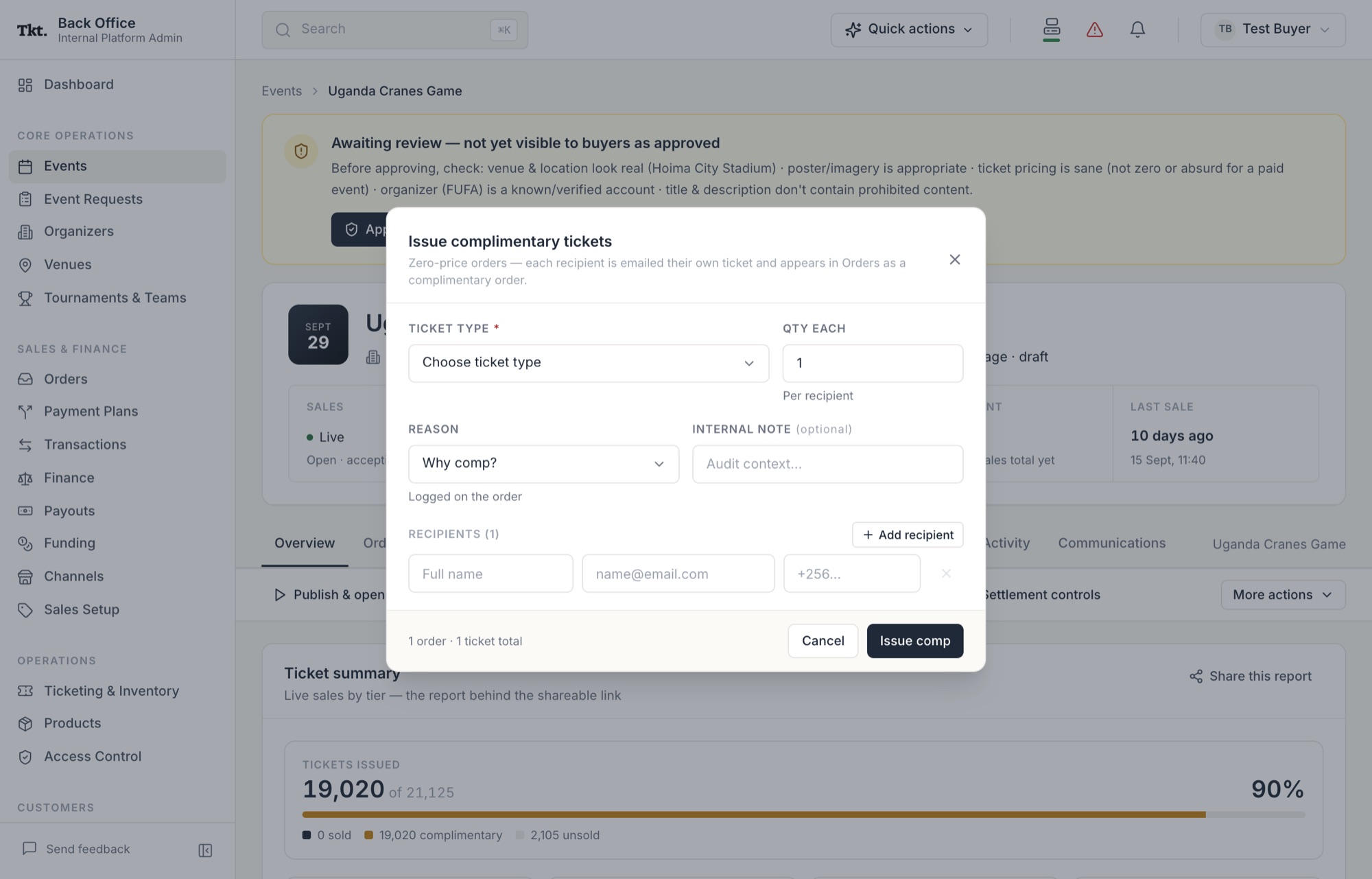 123451The ticket type.2How many each recipient gets — 19,000 for one bulk order.3The reason, kept on the order.4The recipient. For a bulk run, the organisation receiving them.5Issue comp.
 - Back officeOpen the order
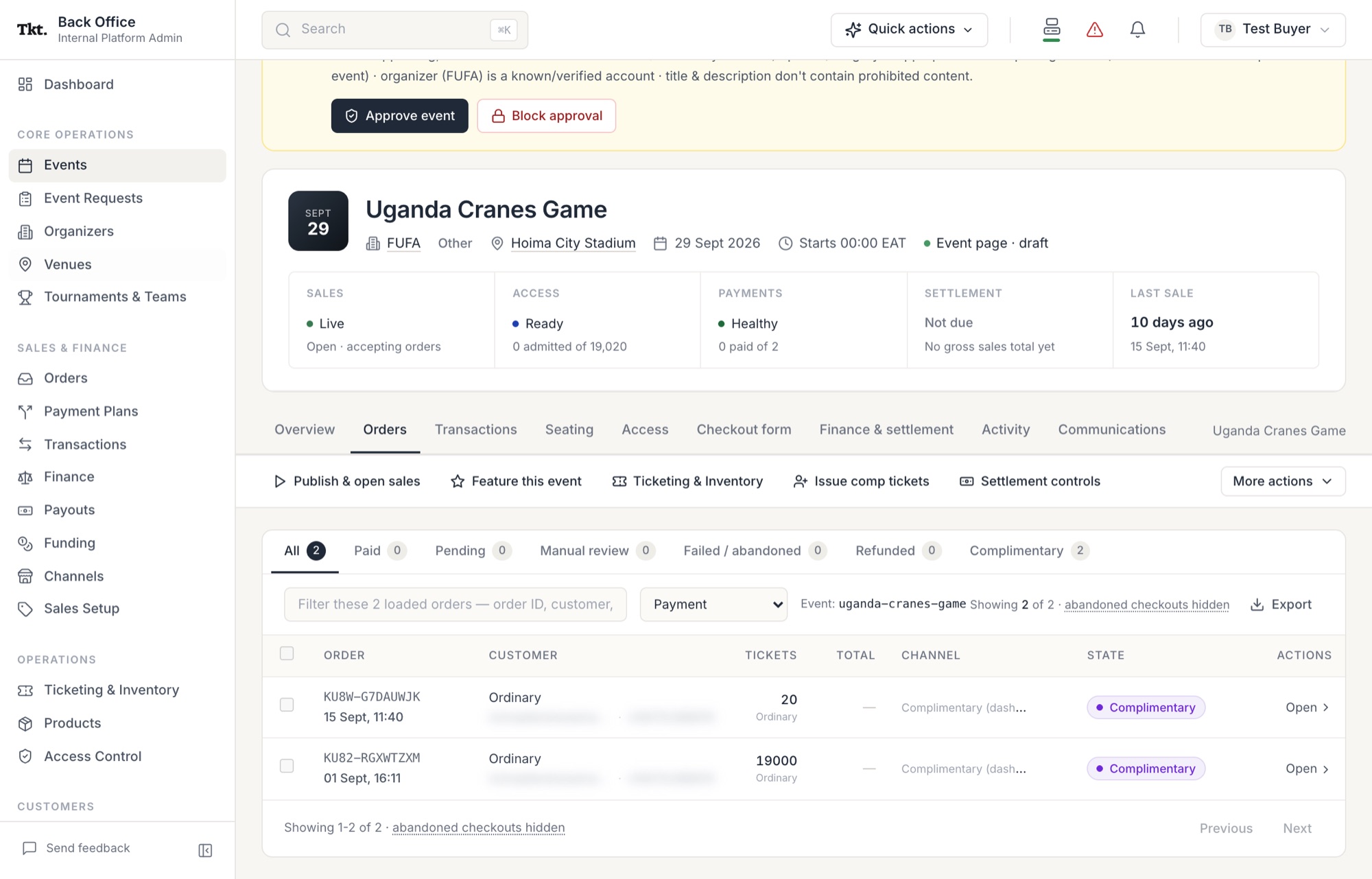 1
1The event’s Orders tab. Complimentary orders are marked in purple. Click the row, or Open. - Back officePress “Print on this computer”
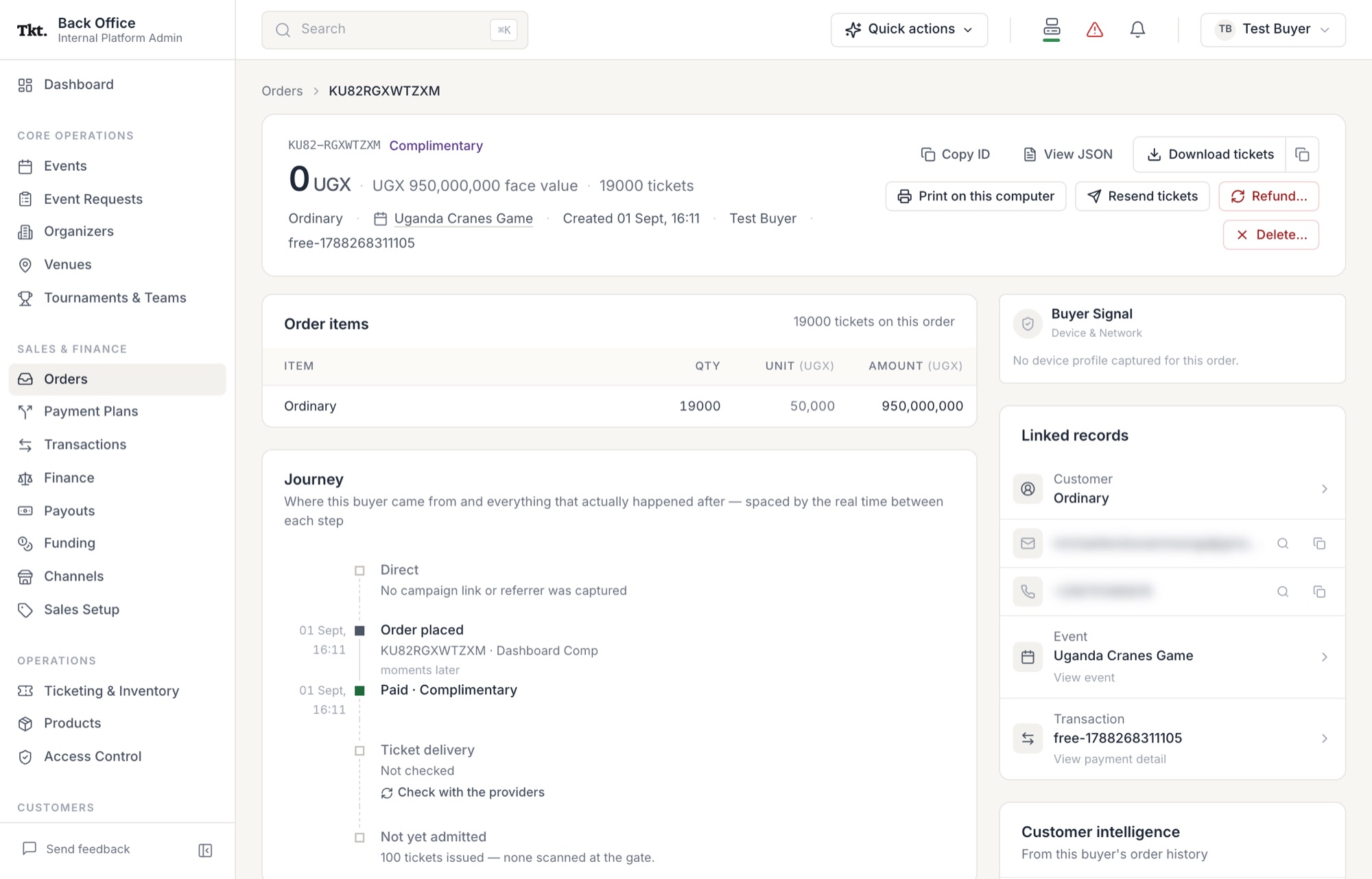 1
1On any paid or complimentary order. Download tickets, beside it, is for a few at a time; Print on this computer is for any number. - Your browserLet the browser open TKT Print
Tick Always allow… so it doesn’t ask again, then Open TKT Print. In Safari, click Allow.Drawing · what Chrome and Edge show
- TKT PrintLook at the picture
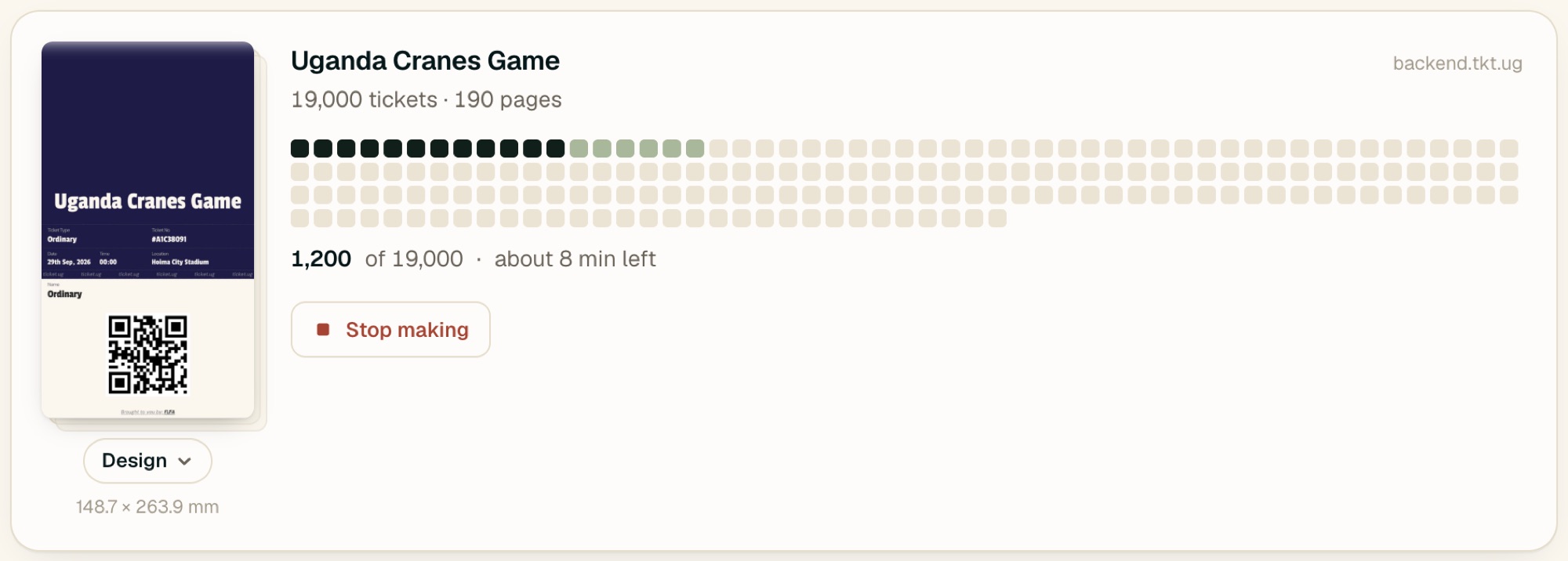 12341Within seconds the first ticket appears. Look at it — right event, right date, right design?2One square per 100 tickets, filling in as they’re made (chapter 12).3How many are made, and roughly how long is left.4If the picture is wrong, Stop making now, before thousands are made. What’s made so far is kept.You can walk away.The computer won’t fall asleep while TKT Print works, and you can close the window. If the computer restarts, the job carries on from where it stopped the next time TKT Print opens.
 - TKT PrintRead the checks, then print
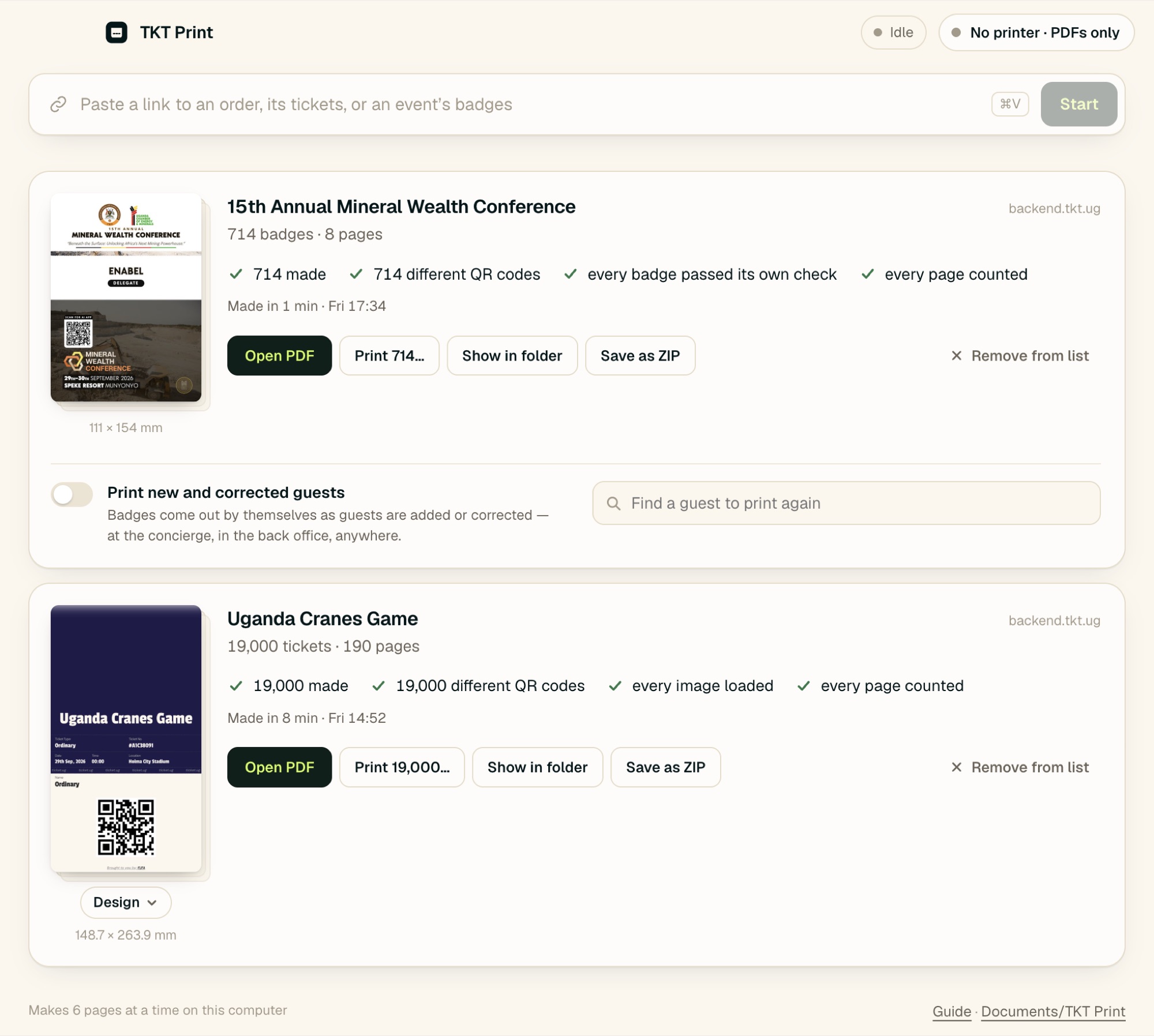
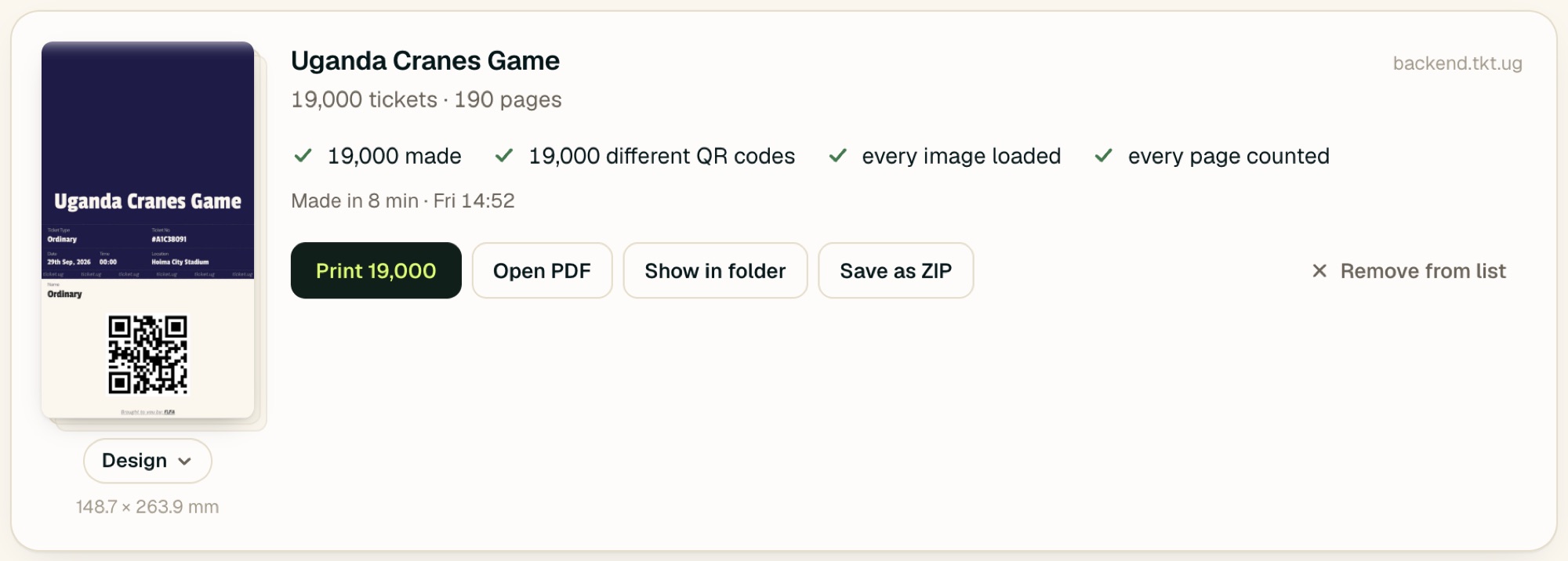 1231Each tick is something that was counted: 19,000 made, 19,000 different QR codes — no two tickets alike — every image loaded, every page counted.2Print 19,000 sends it to your printer, page after page (chapter 10).3Open PDF — to look through it, email it, or take it to a print shop.
5Conference badges, start to finish
A conference with 714 guests: Delegates, Speakers, Ushers and Media. Their list is in a spreadsheet.
- Back officeGo to Accreditation and choose the event
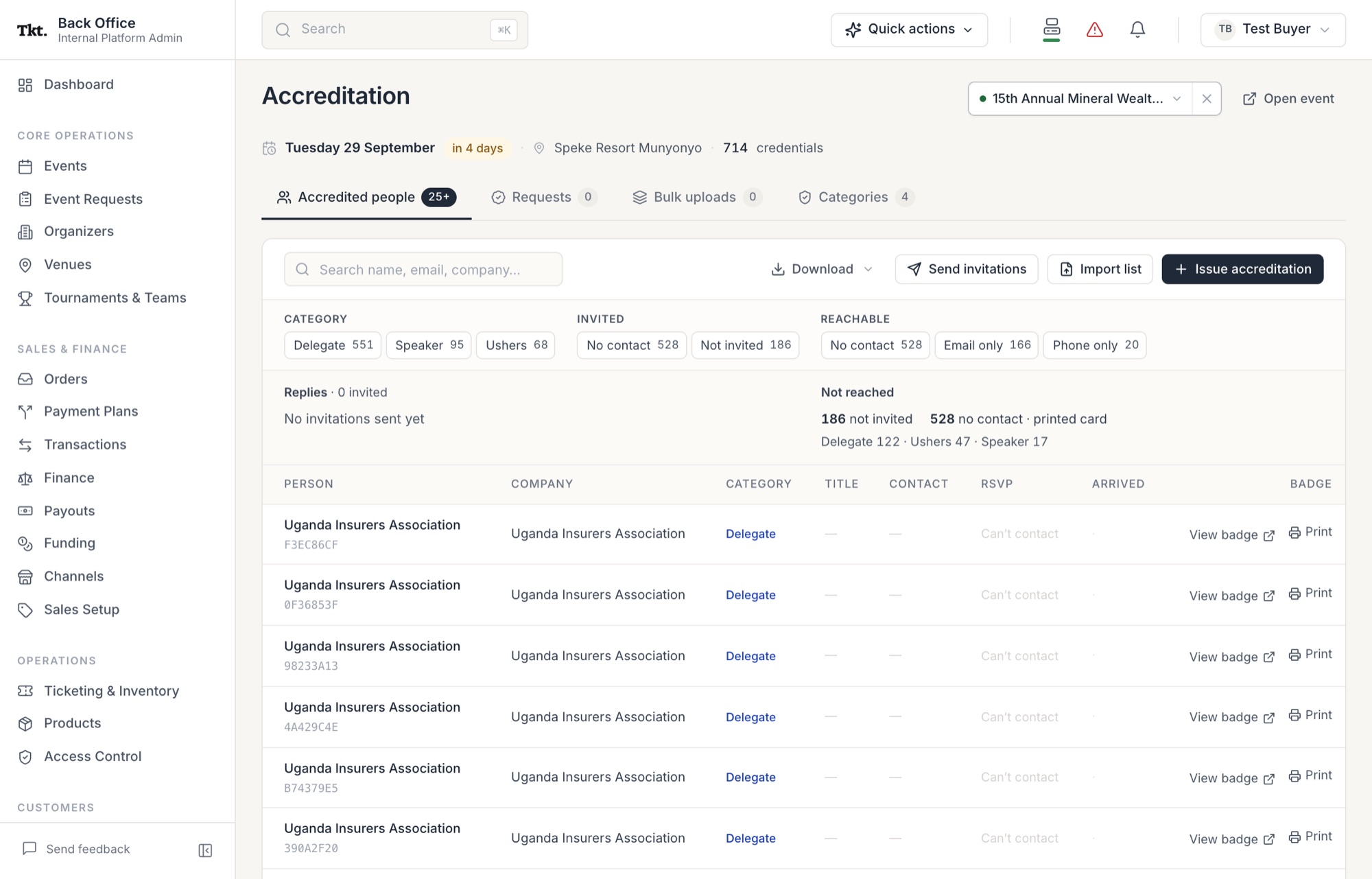 12
121 The event. 2 Import list brings guests in from a spreadsheet. - Back officeBring in the guest list
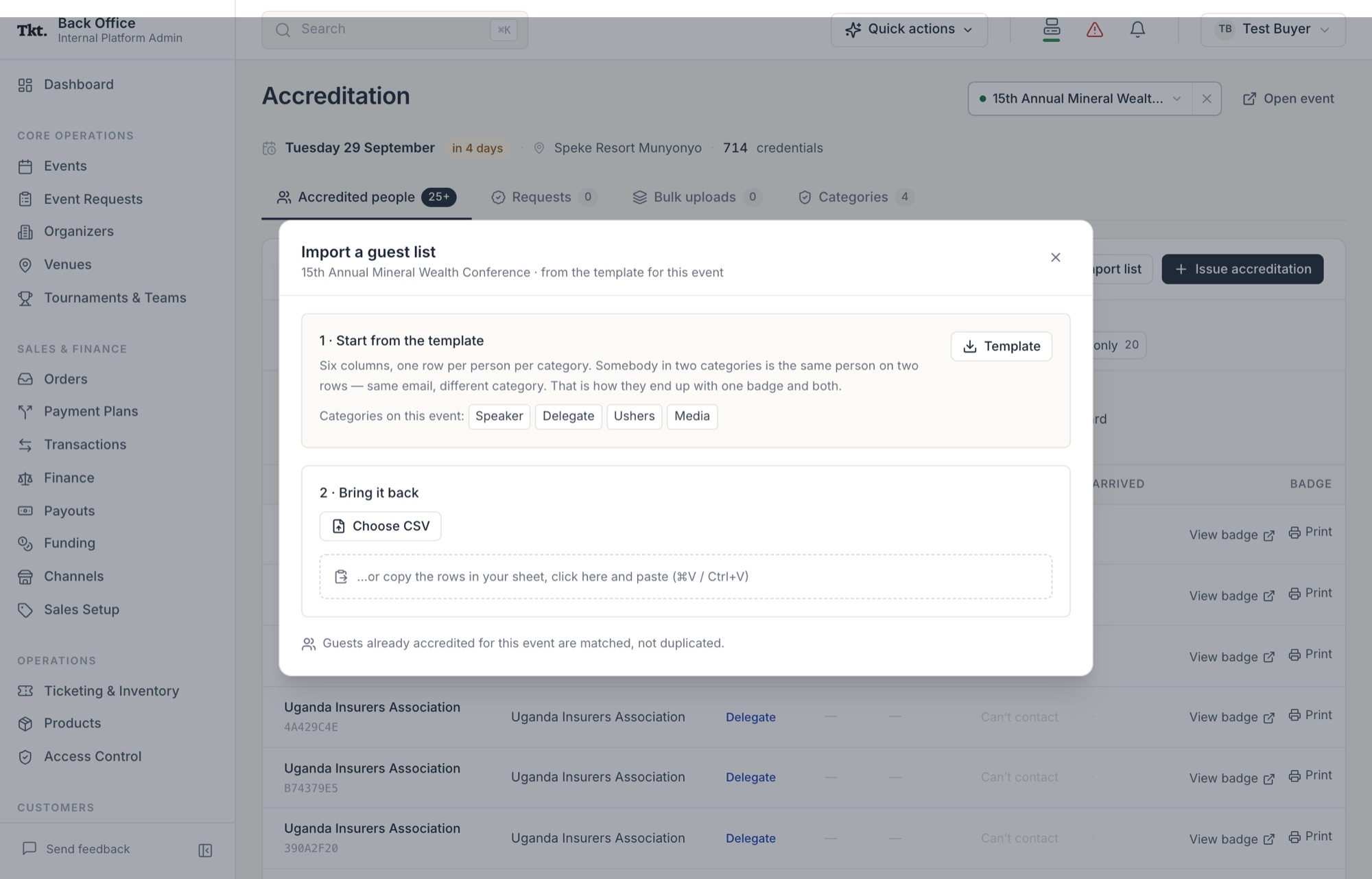 1231Download the Template: six columns — name, email, phone, organisation, title, category. One row per person per category.2Fill it in and bring it back as a CSV…3…or copy the rows in your sheet (with or without the header row), click this box and paste.
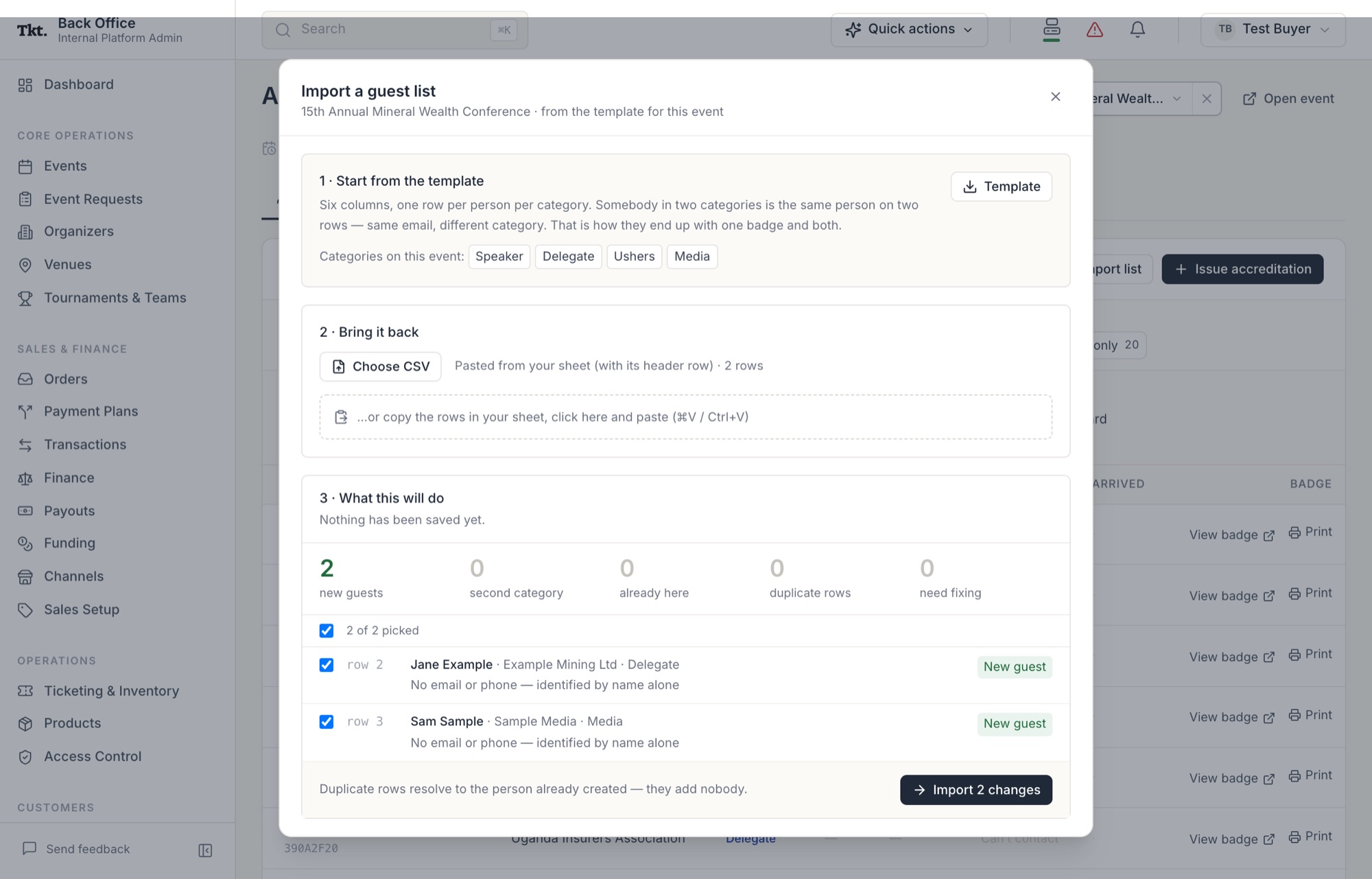 123
123Nothing is saved yet. 1 What the import will do. 2 Each row as it was read — untick any to leave them out. 3 Import when it’s right. A badge for an organisation, with no person’s name, is fine: leave the name empty and fill in the organisation. - Back officeDownload ▾ → Print on this computer
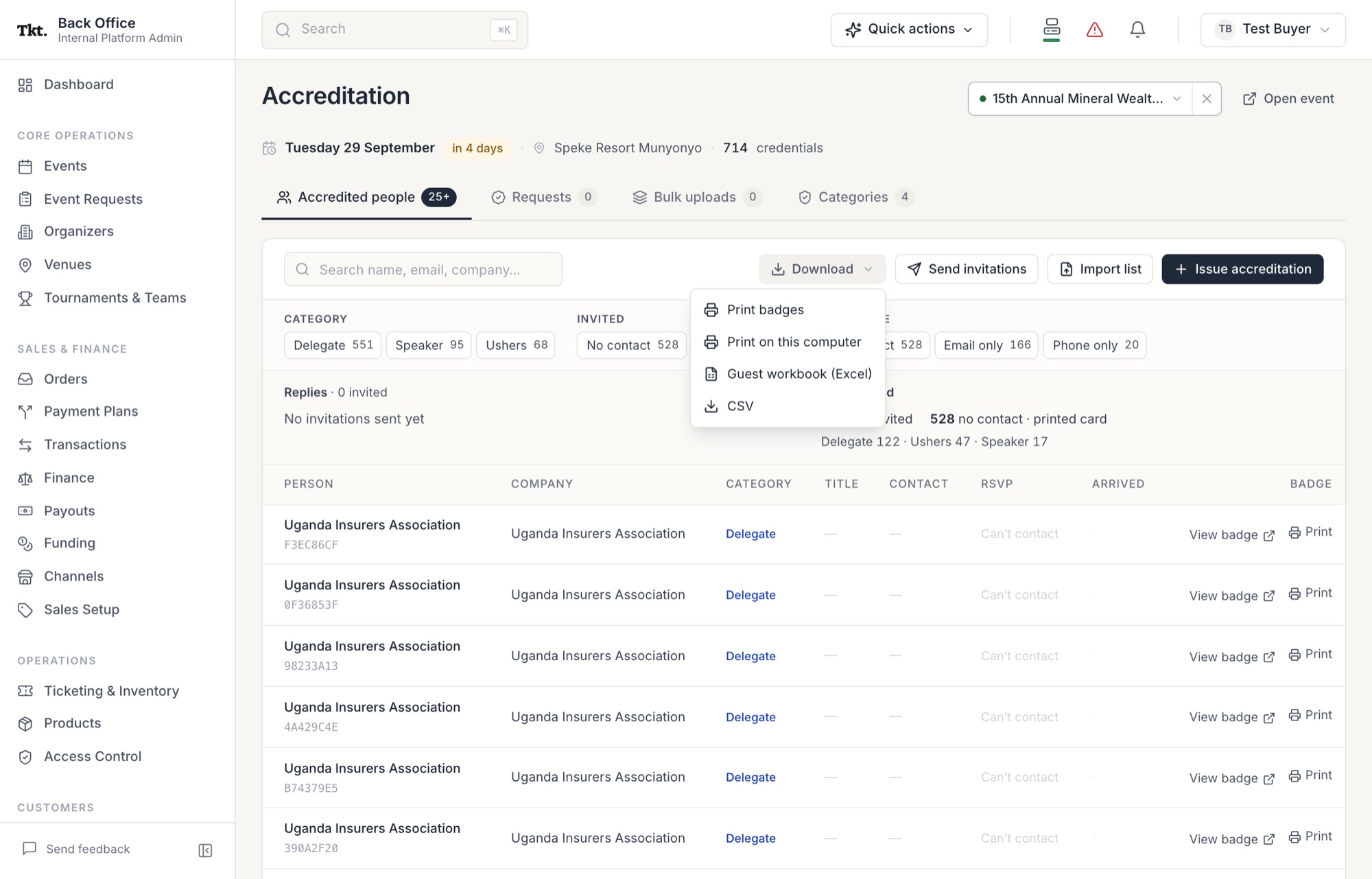 123
1231 Download opens the menu. 2 Print on this computer sends every guest’s badge to TKT Print. 3 Print on one guest’s row sends just that badge, straight to the printer. The browser asks to open TKT Print, as in chapter 4. - TKT PrintEvery badge is made and checked
It looks like the tickets in chapter 4, with one more check: each badge checks itself — its QR code loaded, the name fits — and a badge that fails isn’t counted as made. The card names the guest and says why (chapter 13).
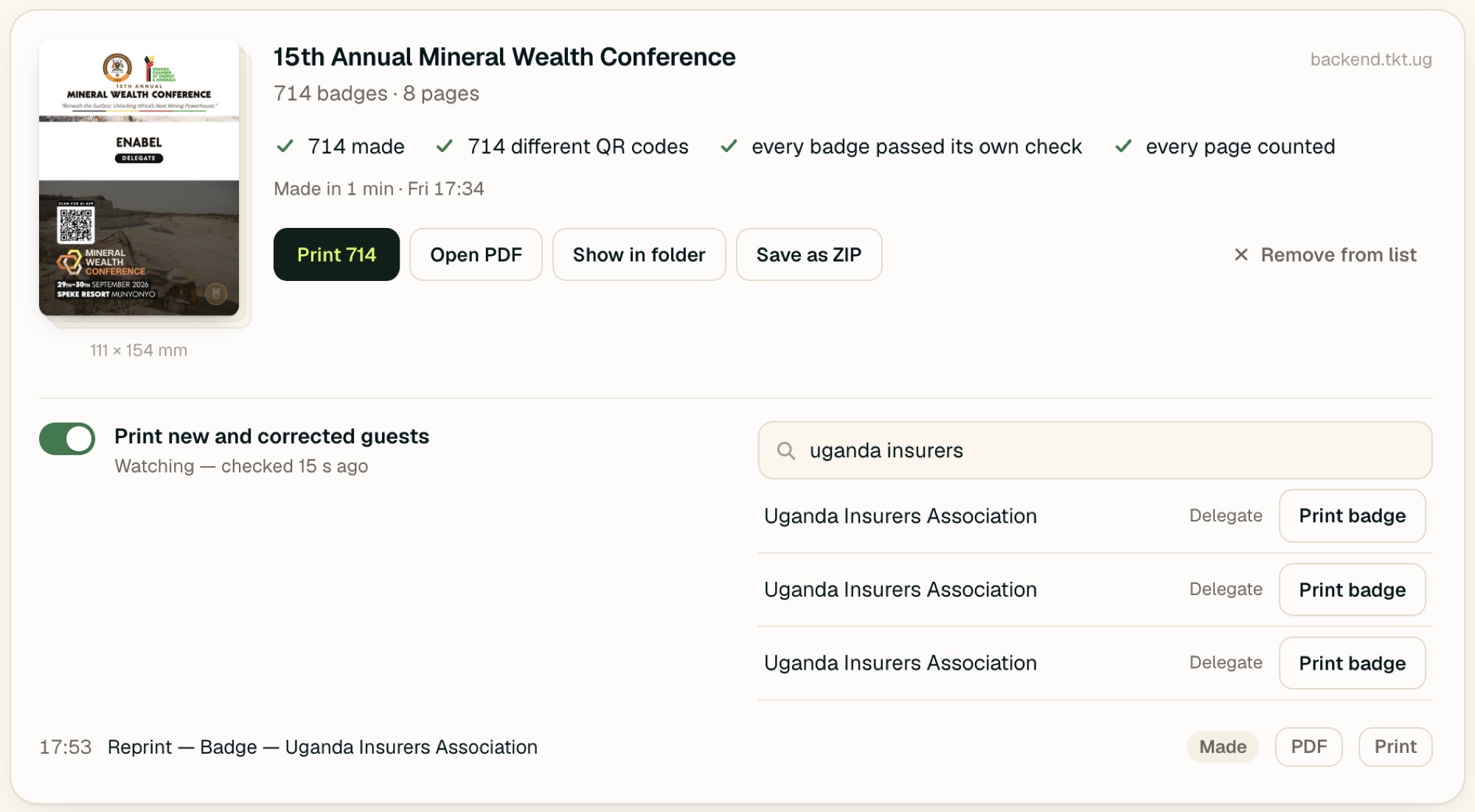 1
11 714 made, 714 different QR codes, every badge passed its own check. - TKT PrintPrint, or take the PDF to a print shopBadges are 111 × 154 mm. On A4, each prints in the middle of its sheet with corner marks to cut along (chapter 9).
6On the day: the accreditation desk
Guests arrive who weren’t on the list, a name is spelled wrong, a badge is lost. The finished badge job has what the desk needs.
123457Starting from a link
Someone sends you a link, or you already have the order open in your browser. TKT Print takes these:
| Link | What it prints |
|---|---|
| An order in the back office — backoffice.tkt.ug/orders/… | All of that order’s tickets |
| An event’s accreditation page — backoffice.tkt.ug/accreditation?event=… | Every guest’s badge |
| A ticket or badge download link — apis.tkt.ug/… | Those tickets, or that badge |
- Copy the linkFrom the browser’s address bar, an email, a chat.
- Paste it into TKT PrintClick anywhere in the window and press ⌘ VCtrl V. The job starts at once. You can also drag the link from the browser onto the window.

Printing
A printer is optional — every job is a PDF first. When there is one, TKT Print sends pages to it itself, at true size.
8Choosing the printer and paper
Click the printer at the top right of the window. This opens:
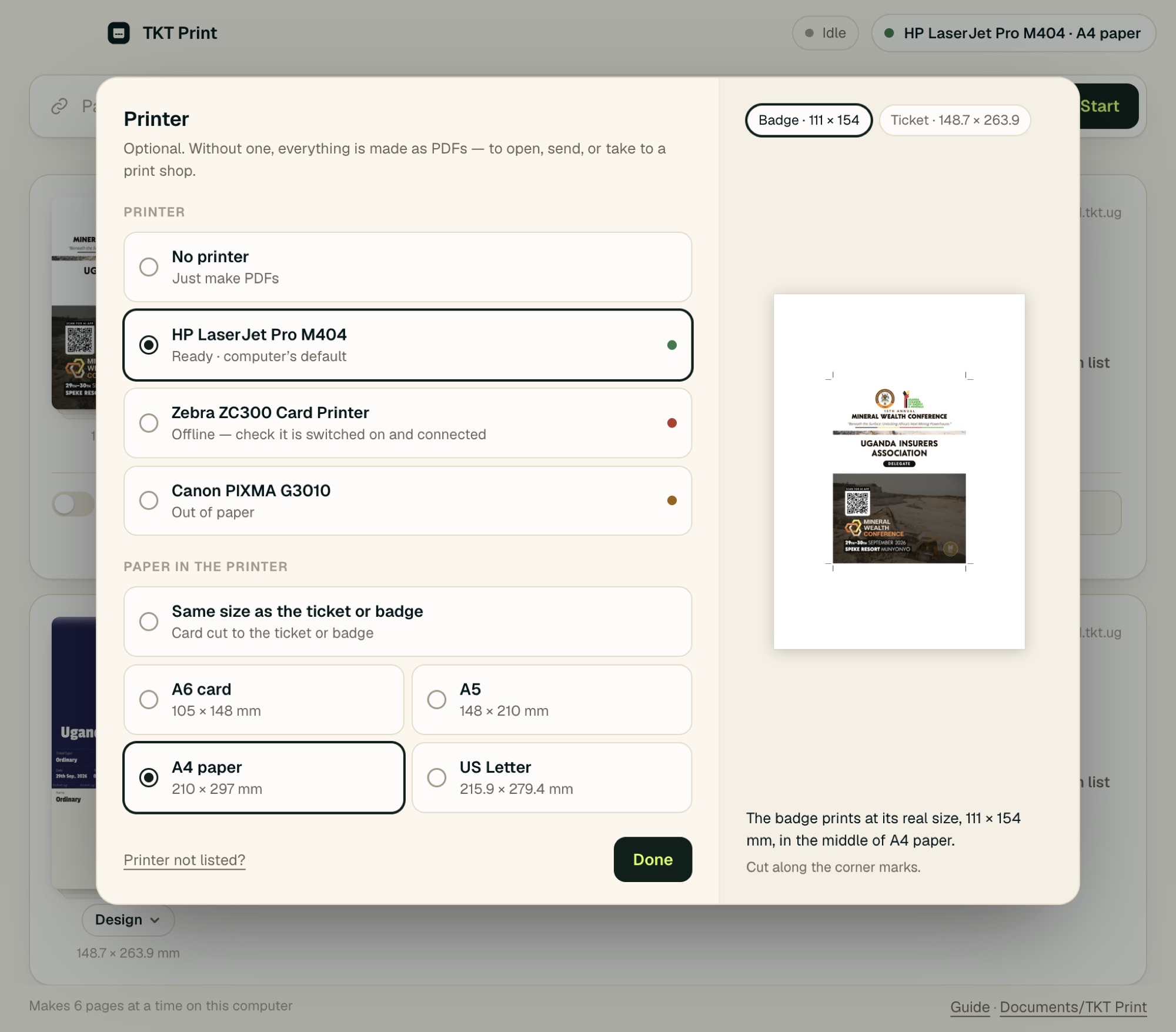 12345678
The printer at a glance
Once chosen, the top of the window always shows it:
| You see | It means |
|---|---|
 | No printer chosen. Jobs are made as PDFs. |
 | Ready, with A4 paper. Finished jobs have a Print button. |
 | A printer is chosen, but not the paper. Click and choose it. |
 | Switched off or not connected. Check its power, cable or Wi-Fi. |
 | Needs you: out of paper, jammed, or out of ink. |
9Where things land on the paper
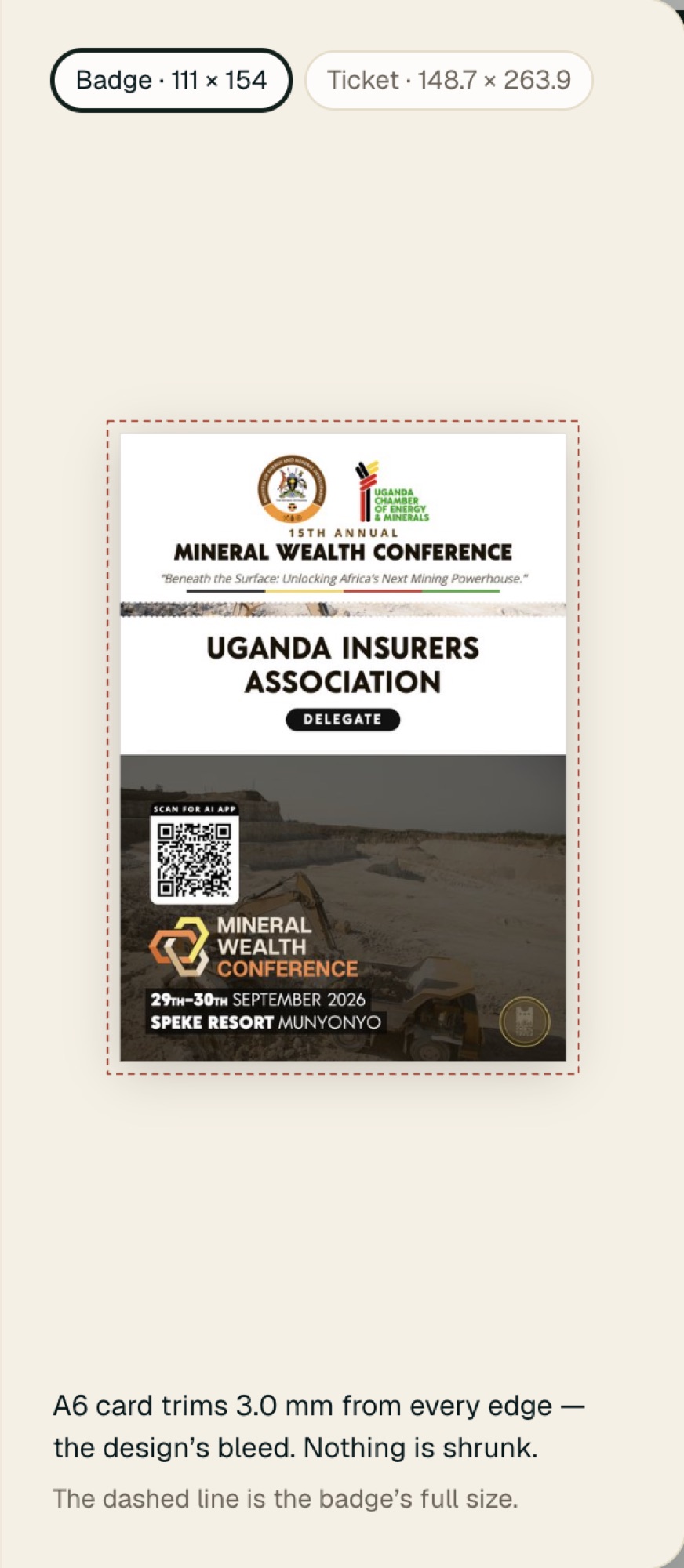
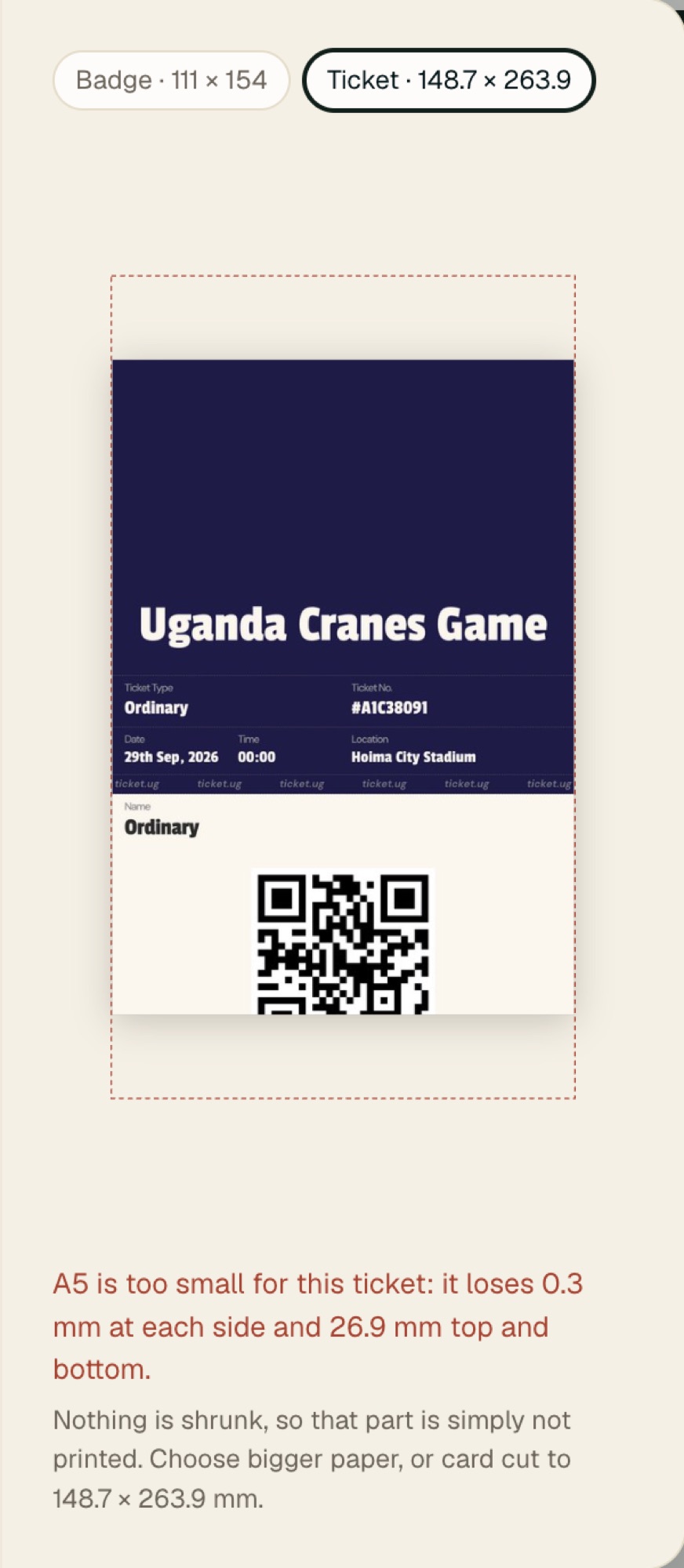
Nothing is ever shrunk or stretched. A badge prints at 111 × 154 mm whatever the paper. The paper only decides how many fit, and where to cut.
Drawn by the same rule the app prints by:
- Bigger paper: as many as fit at real size, centred, with corner marks to cut along. Where two touch, a thin guide line shows the cut.
- Paper the same size: each one fills its sheet, edge to edge.
- Slightly smaller paper: up to 3.5 mm is trimmed from the edges — the design’s bleed, meant to be trimmed.
- Too small: the window says so in red, before anything is printed.
10Sending a job to the printer
Press Print 19,000 on a finished job. It goes to the printer a page (100) at a time, in order. Just before each page goes, TKT Print loads it again and compares it with the page it checked — what prints is what was checked.
| You see | It means · what to do |
|---|---|
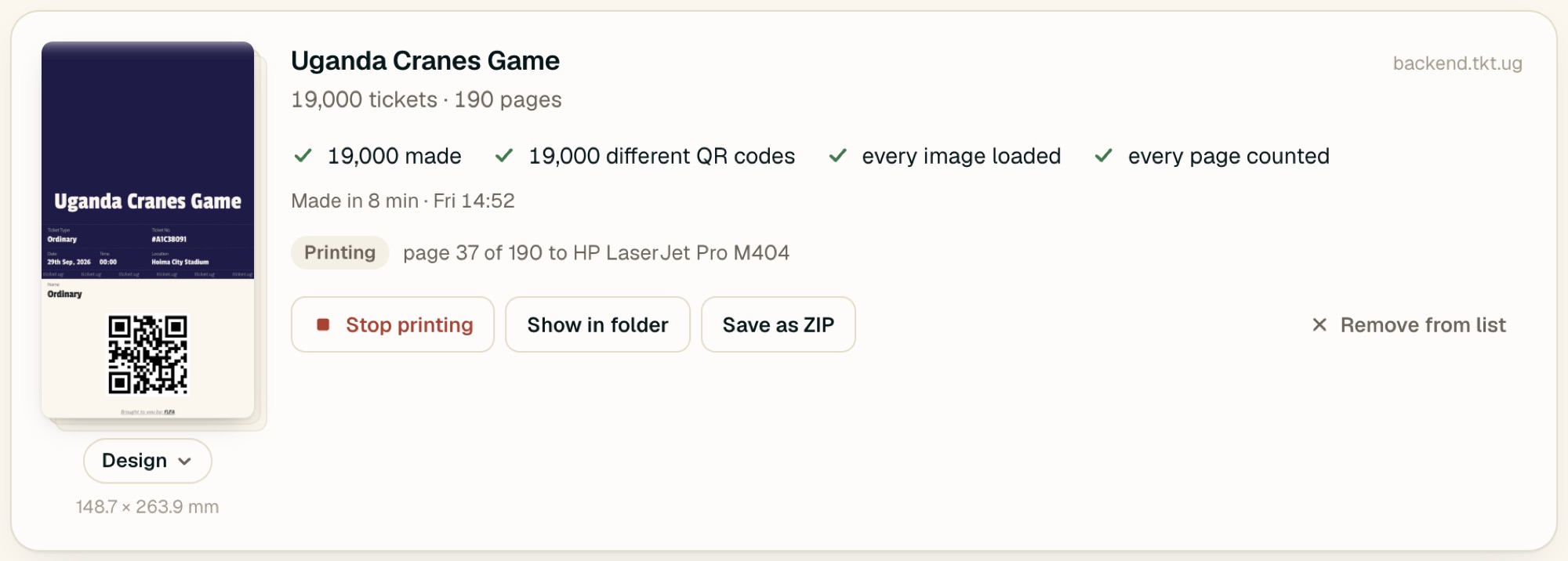 | Printing. Page 37 of 190 is going to the printer. Stop printing stops after the page that’s in the printer now. |
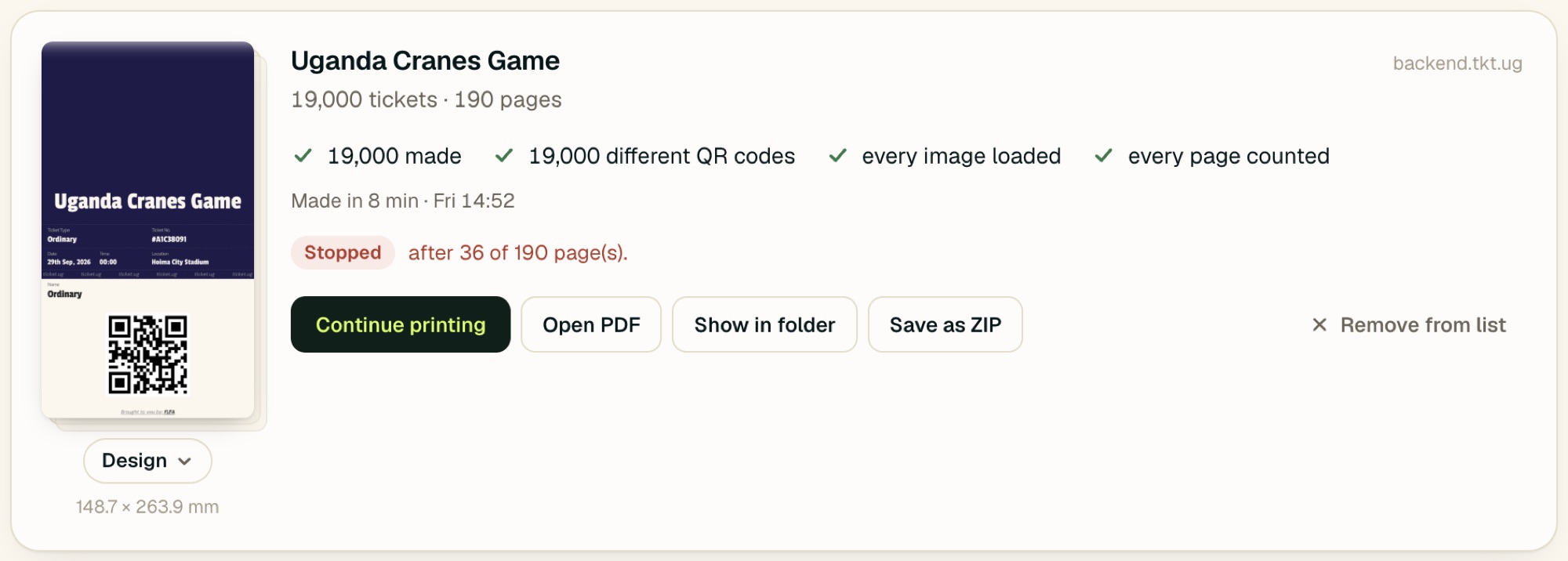 | You stopped it. Continue printing carries on with the next page — nothing is printed twice. |
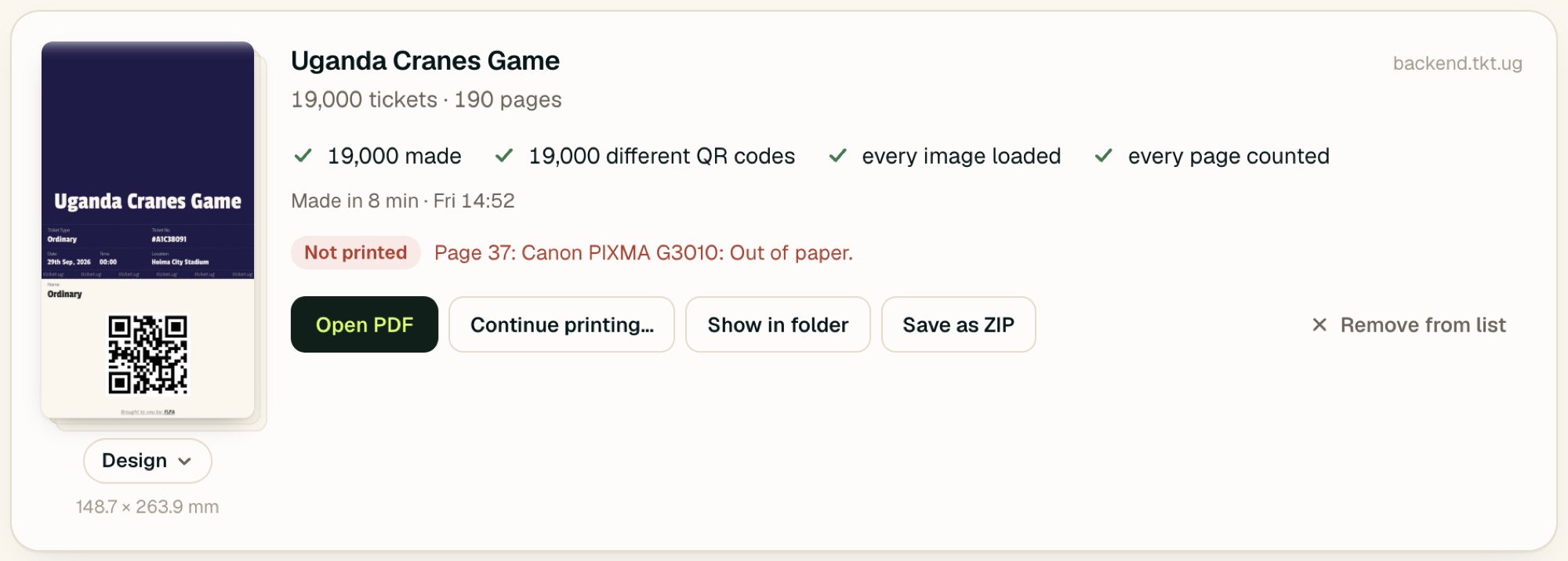 | The printer stopped it. The reason follows the page number. Fix it (here: add paper), then Continue printing. |
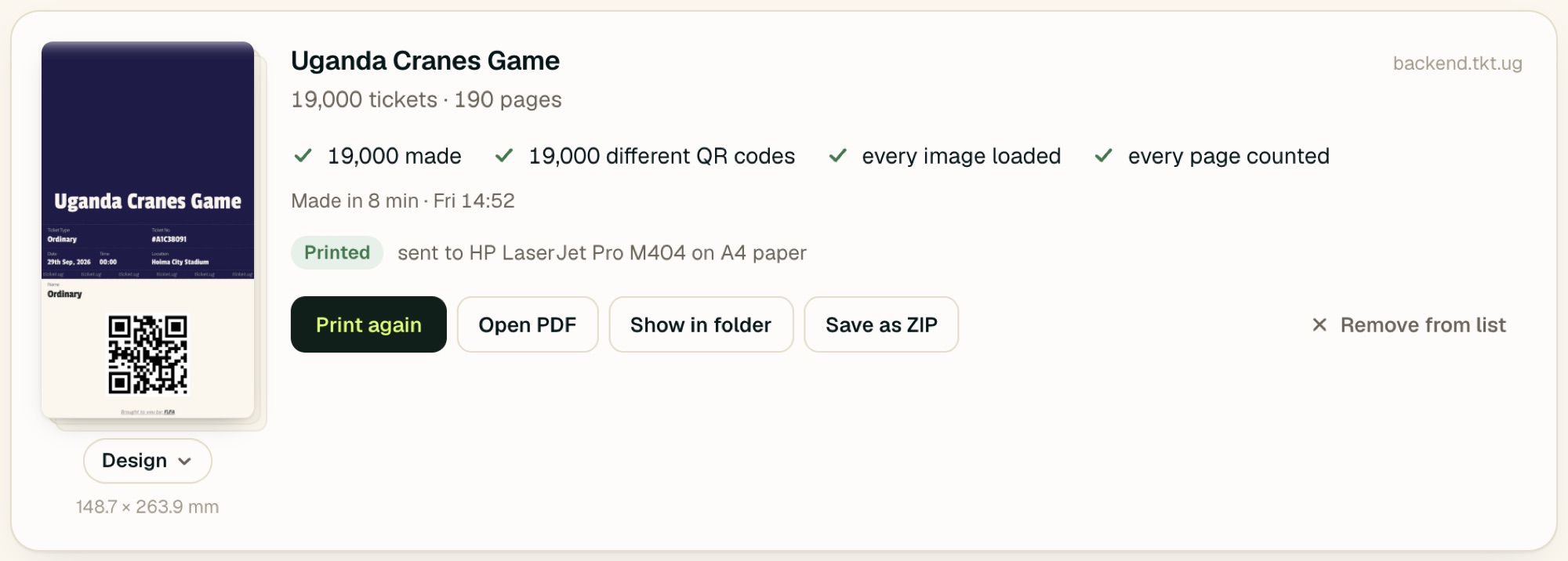 | Done. Every page went to the printer. Print again prints another full copy. |
11Printing in another design
Tickets print in the event’s own design. To print this one job in another — say a complimentary design for a stadium run — click Design ⌄ under the ticket’s picture:
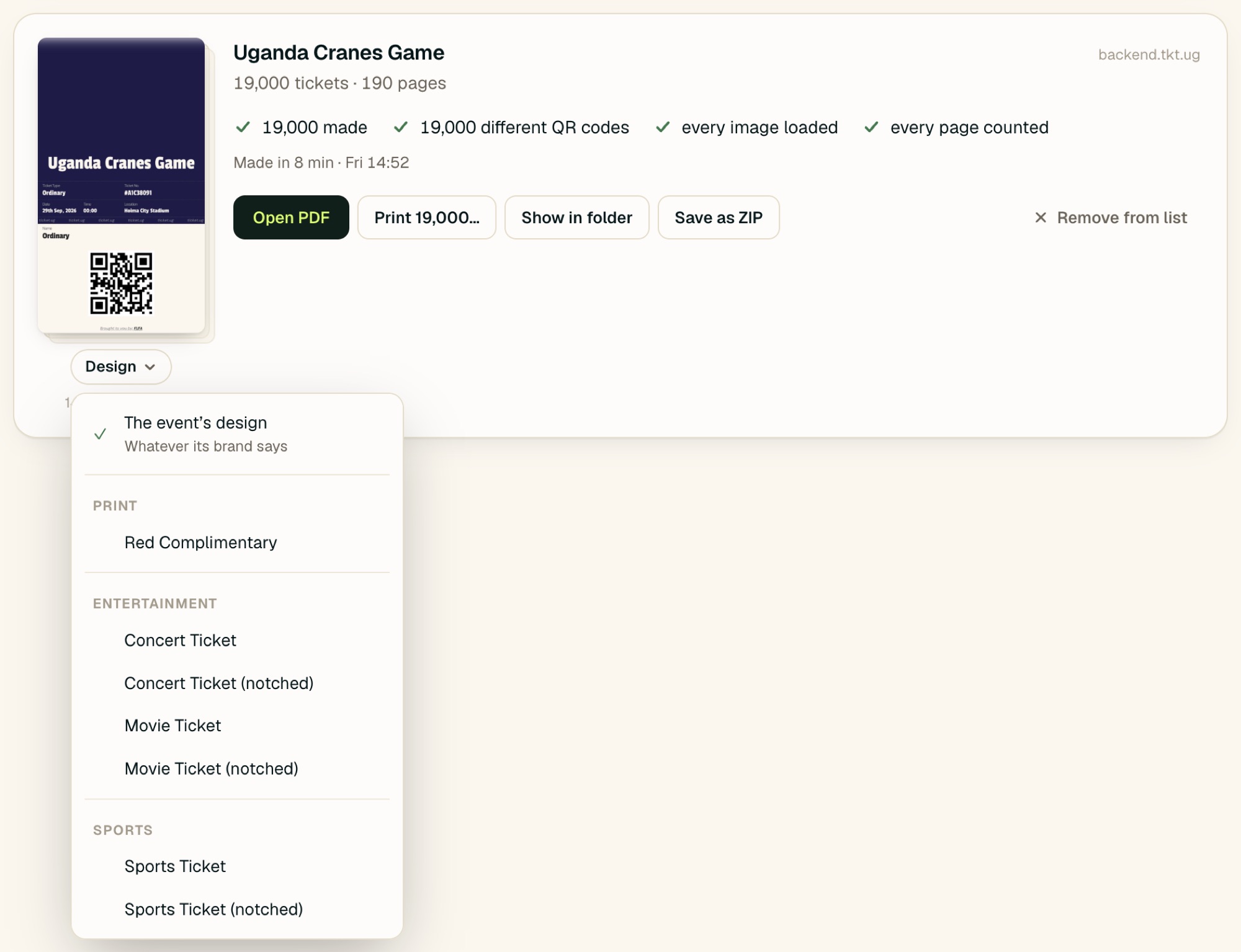 123
123Only this job changes. The event — and every ticket buyers see — keeps its own design.
When something isn’t right
What each state looks like, what it means, and the one thing to do.
12Reading the page squares
While a job is being made, each square is one page: 100 tickets, or up to 100 badges. Point at a square to see which tickets it holds.
| Square | Means |
|---|---|
| Made and checked. | |
| Being made now. It pulses. | |
| Waiting its turn. | |
| Failed once — will try again by itself. Nothing to do. | |
| Couldn’t be made in three tries. See chapter 13. |
13What “stuck” looks like, and what to do
The squares turn amber
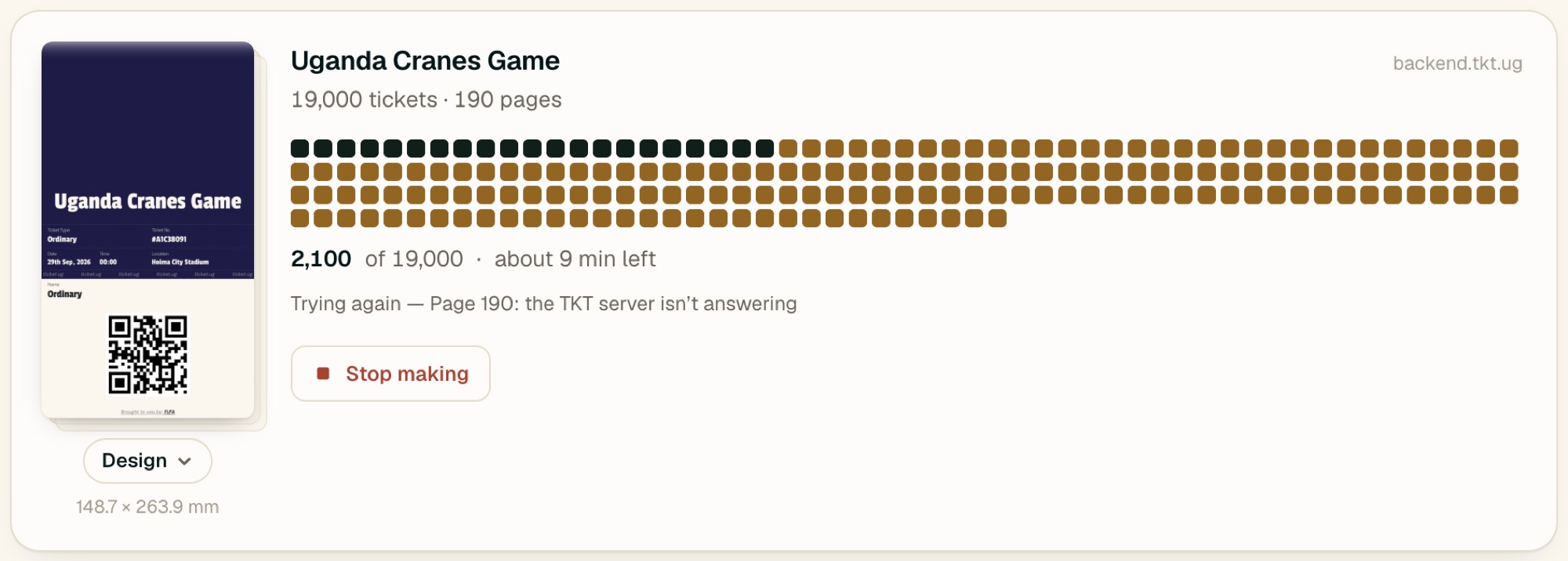 12
12What to do: check the internet. Nothing else — as soon as it’s back, the pages are made.
The squares turn red and the job stops
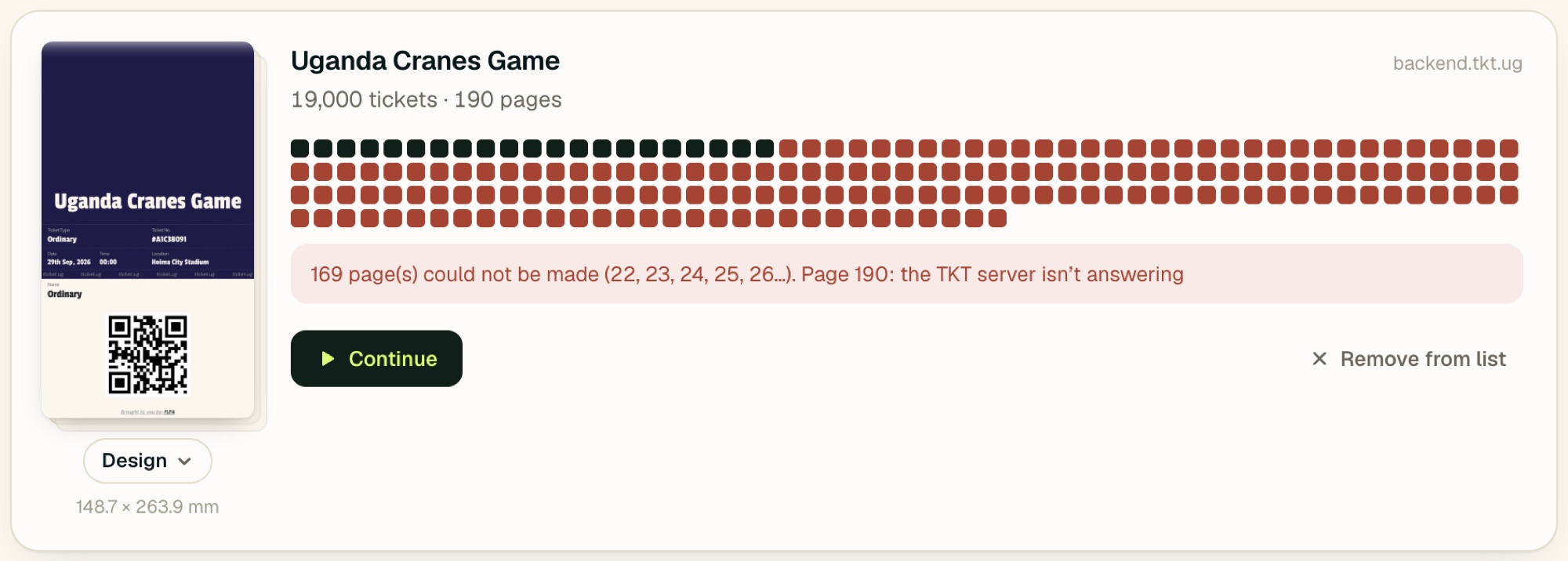 123
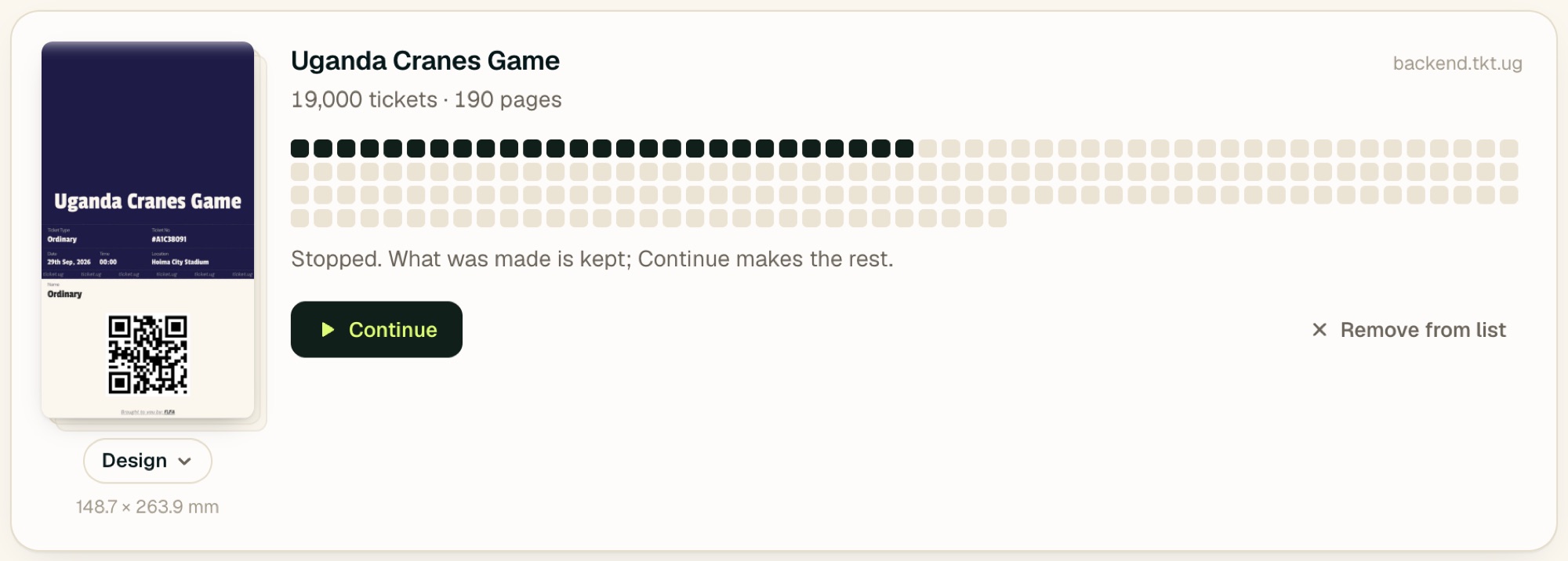
123You pressed “Stop making”
 123
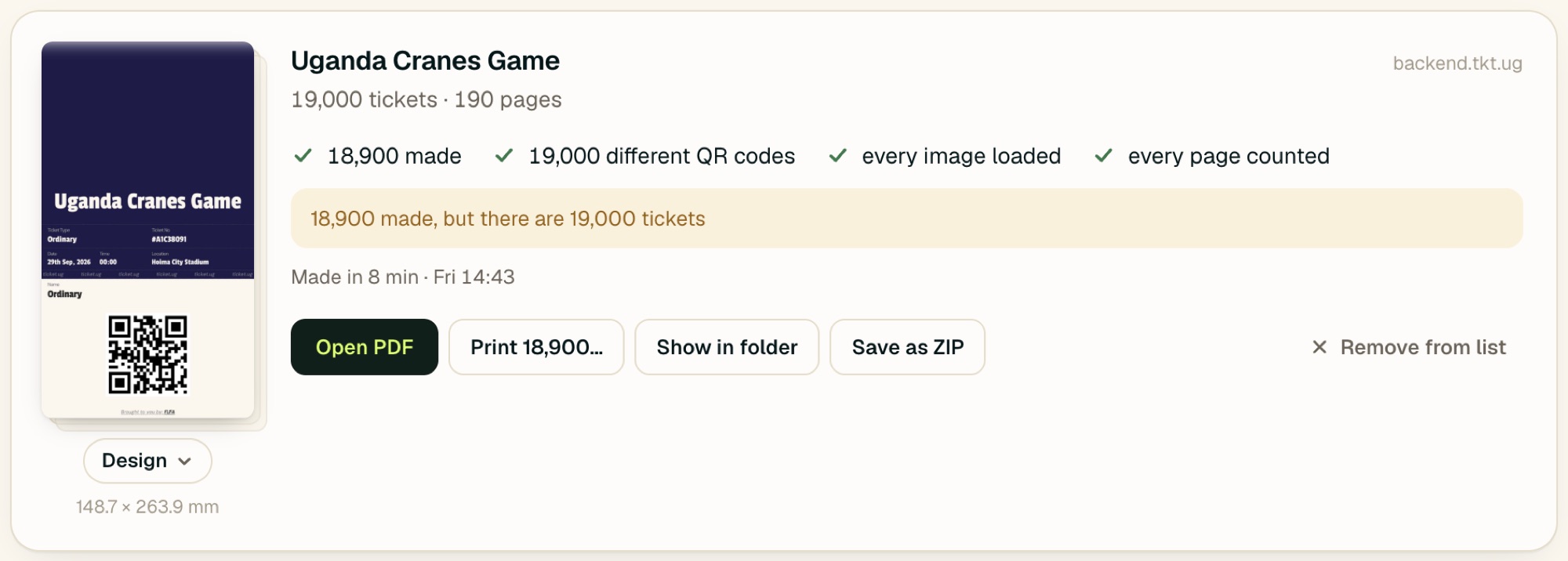
123Finished, but it “needs a look”
 1
1Every page was made, but a count doesn’t add up — here, fewer tickets than the order holds. Other things said here: QR codes appear more than once, or No badge made for named guests. Don’t print it. Tell whoever manages the event; once it’s put right in the back office, start the job again from its link.
A badge “failed its own check”
The message names the guest and why — usually a name too long to fit, or a QR code that didn’t load. Correct the guest in the back office, then press Continue.
“This page no longer matches the PDF that was checked”
While printing, a page came back different from the one that was checked: the order changed after the PDF was made. TKT Print won’t print an out-of-date page. Start the job again from its link.
14Quick fixes
| If… | Do this |
|---|---|
| “Print on this computer” does nothing | TKT Print isn’t installed on this computer (chapter 2), or the browser was once told not to open it. Copy the page’s link and paste it into TKT Print instead (chapter 7). |
| The browser asks every time | Tick Always allow… in its question (chapter 4, step 5). |
| “The TKT server isn’t answering” or “no internet connection” | Check the internet. Pages are tried again by themselves; if the job has stopped, press Continue. |
| “The connection was interrupted (the computer may have slept)” | Nothing — it tries again. TKT Print keeps the computer awake while it works, but closing a laptop’s lid still sends it to sleep. |
| “That link isn’t something TKT Print knows how to print” | Open the order, or the event’s accreditation page, in the back office and copy that link. |
| “Not printed — …” | The reason follows the dash: offline, out of paper, no paper chosen. Fix it, then Print or Continue printing. |
| My printer isn’t in the list | Printer not listed? in the printer window opens your computer’s printer settings (System Settings → Printers & Scanners) (Settings → Bluetooth & devices → Printers & scanners). Add it there; it appears in TKT Print by itself. |
| Badges come out cut off | The paper chosen in TKT Print isn’t what’s in the printer. Open the printer window and choose the paper that’s loaded — the picture shows the result. |
| I closed the window mid-job | It’s still working. Open TKT Print again to see it. |
| The computer restarted mid-job | Open TKT Print. The job carries on with the pages it hadn’t made. |
Reference
15Where the files are
Every job has its own folder in Documents → TKT Print, named by date, time and what it is. Show in folder opens it.
Save as ZIP packs a job’s PDFs into one file in your Downloads — to email, or to take to a print shop on a USB stick. Remove from list never deletes files.
16Keys
| Press | To |
|---|---|
| ⌘ VCtrl V anywhere in the window | Start a job from the link you copied |
| F1 | Open this handbook |
| Esc | Close the printer window or the design list |
| ↑ ↓ | Move through the design list |
17How it behaves
| Pages | Tickets are made 100 to a page — the server’s own pages. Badges, up to 100 to a page. |
| Speed | Several pages at once, depending on the computer (the bottom of the window says how many). 19,000 tickets took 8 minutes on a recent laptop. |
| What is checked | Every page is counted; every image must load; every QR code is read and must be different; badges check themselves. A page counts as made only when all of it is. |
| Size | Measured from the ticket or badge itself. Never scaled when printed. |
| Retries | A page that fails is tried three times in all, 15 and 30 seconds apart. |
| Sleep | The computer is kept awake while anything is being made or printed, and allowed to sleep as soon as it’s done. |
| Quitting mid-job | Safe. The next time it opens, it carries on with the pages not yet made. |
| Designs | Choosing a design changes that job only, never the event. |
| The desk | While switched on, checks for new or corrected guests every 20 seconds. |
| Your data | Everything stays on this computer. TKT Print reads tickets and badges from the TKT server and sends nothing back. |
18Words used in this handbook
- Job
- One order’s tickets, or one event’s badges. One card in the window.
- Page
- 100 tickets, or up to 100 badges, made together. One square.
- Complimentary order
- Tickets issued free from the back office. They print exactly like sold ones.
- Bleed
- A few millimetres of design beyond the cut, there to be trimmed so no white edge shows.
- Corner marks
- Short lines outside each ticket or badge that show where to cut.
- The desk
- The part of a finished badge job for the day itself: new and corrected guests, and reprints.